Cost / License
- Free
- Open Source (Zlib)
Application typeApplication types
Platforms
- Windows
- Linux
- BSD
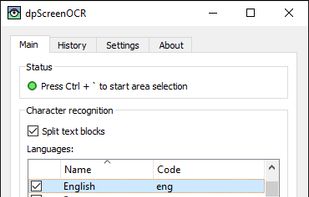


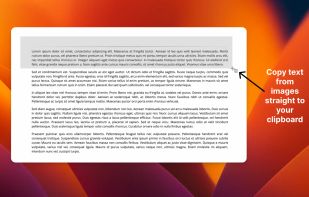
Apps similar to Boxoft Screen OCR include Greenshot, which is open source with a free version. Other options are Spectacle, Snagit, Adobe Acrobat DC and NormCap. You're spoiled for choice with Screenshot Capture Tools like Boxoft Screen OCR: we list more than 25 alternatives for Windows, Mac, Linux, Android and iPhone.

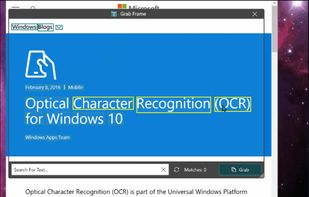
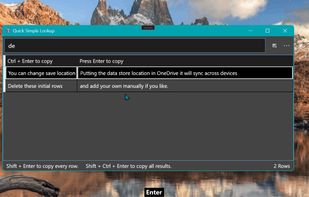
Text Grab is a minimal optical character recognition (OCR) utility for Windows 10/11 which makes all visible text available to be copied.
 United States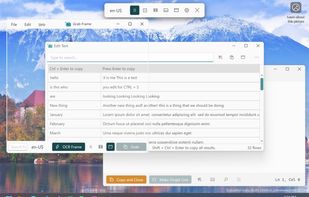
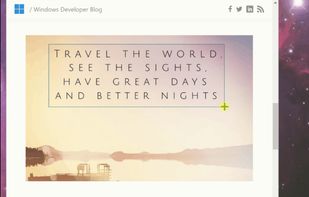


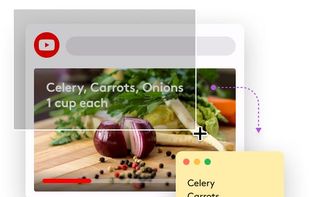
TextSniper is a super useful app to quickly capture unselectable text. Use it to capture and recognize text from presentations, trainings, screencasts,images, pictures, webpages, video tutorials, photos, PDFs etc. Literally from anywhere on your mac's screen.
United States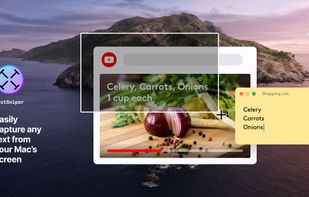


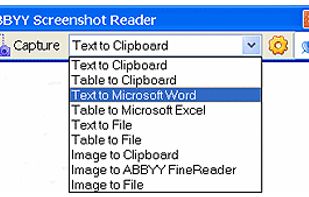
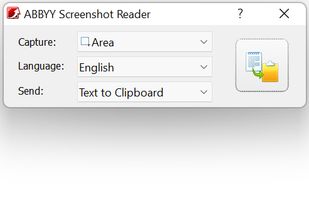
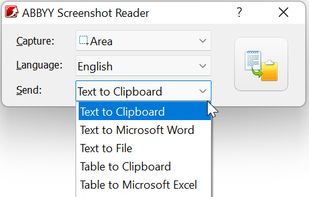
Screenshot Reader is a smart OCR-screenshot application for capturing text and images from any area on your PC screen and extracting text from them or just saving as an image. Prize: 9.99 USD.
 Russia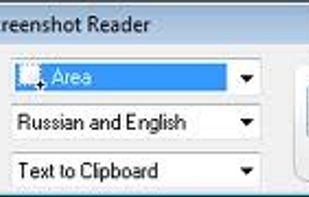


 Spain
Spain EU
EU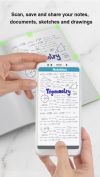
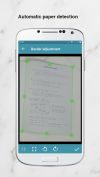
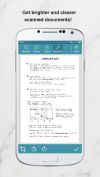


The Adobe Scan scanner app turns your device into a powerful portable scanner that recognizes text automatically (OCR) and allows you to save to multiple file formats including PDF and JPEG.
United States



 GermanyEU
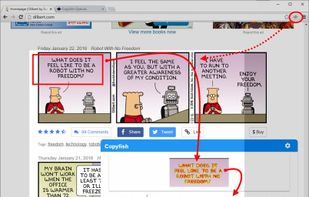
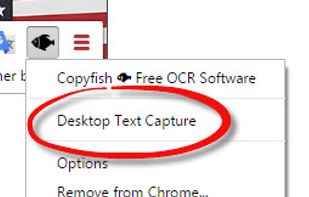


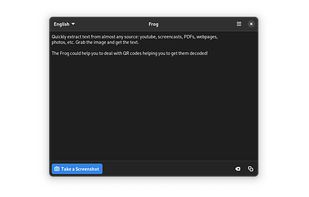
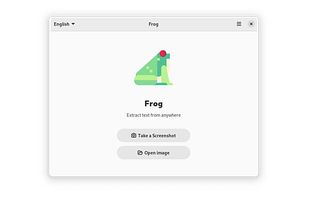
Quickly extract text from almost any source: youtube, screencasts, PDFs, webpages, photos, etc. Grab the image and get the text.
 EstoniaEU


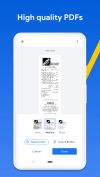
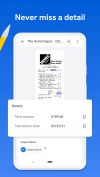
Get rid of paper clutter with Stack. Stack is a PDF scanner, document organizer, and detail finder. All in one.
United States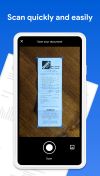

 EstoniaEU