

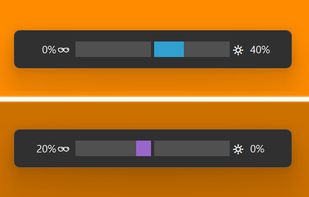
darkbright-helper is a hotkey dimmer for Windows monitors that does not stop at 0%: it lowers the real backlight over DDC/CI, then keeps dimming with a black overlay below the hardware minimum.
 Germany
 EU


Apps similar to PangoBright include Redshift, which is free and open source. Other options are Twinkle Tray, Solace, LightBulb and Monitorian. There's no shortage of Screen Dimmers like PangoBright, with more than 50 alternatives for Windows, Mac, Linux, Android and the web.
darkbright-helper is a hotkey dimmer for Windows monitors that does not stop at 0%: it lowers the real backlight over DDC/CI, then keeps dimming with a black overlay below the hardware minimum.
GermanyEU
Monitor Bright reduces with a simple trick the monitor brightness. Useful to use the PC at night without getting blind if the minimum brightness that can be obtained adjusting monitor settings is still too high if compared to ambience brightness. Supports multi monitor systems.
 ItalyEU
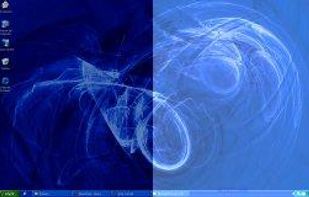


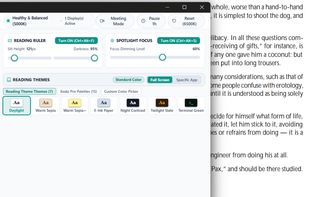
The First Full-Desktop E-Reader & Focus Suite for Windows. Authentic paper & e-ink themes, digital reading rulers, spotlight focus, and fail-safe zero-surprise architecture.
 Algeria
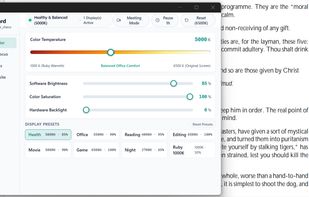
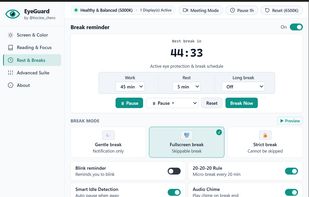

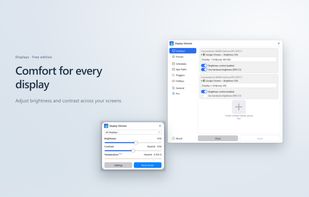
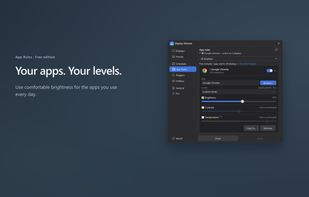
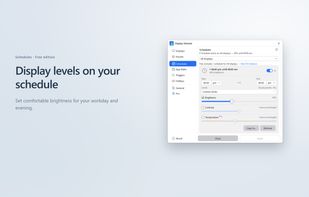
Control brightness and contrast across multiple Windows displays with hardware and software dimming, schedules, app rules, hotkeys, and automatic triggers.
 Canada
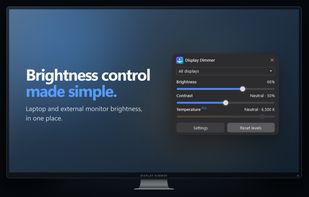

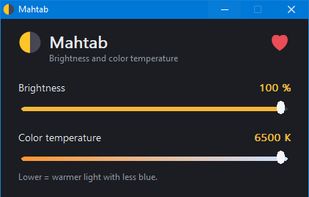
Small, dependency-free screen brightness and color temperature control for Windows (tray app).


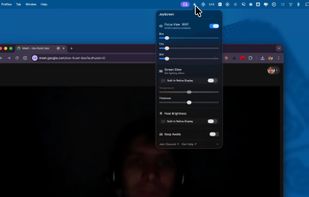
Focus view, extra brightness, ambient glow, and keep awake — all from your menu bar. JoyScreen transforms how you use your Mac.
 PolandEU


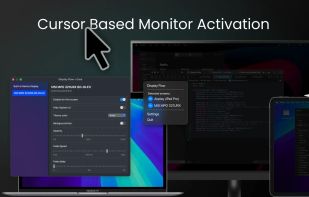
With cursor-based activation, keep your monitors off until you need them and protect your screens from burn-in and image retention.
 United States
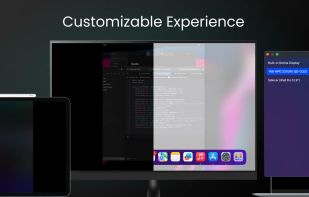
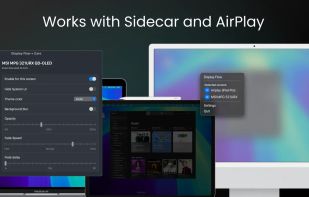

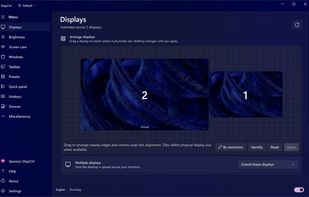
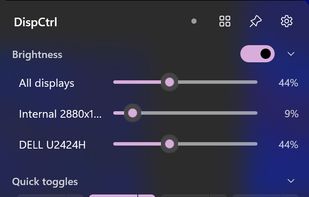
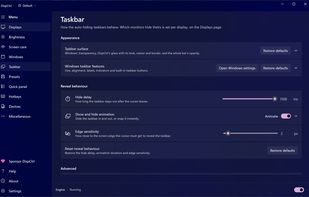
Free, open-source display control for Windows 11: one brightness slider for every monitor (DDC/CI and laptop panels), night light, focus mode, keep awake, per-monitor taskbar hiding and glass, OLED care, your monitor's own settings, hotkeys and a CLI.
 India


 RomaniaEU
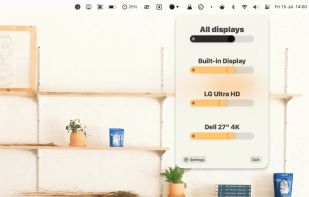


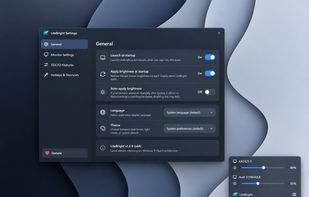
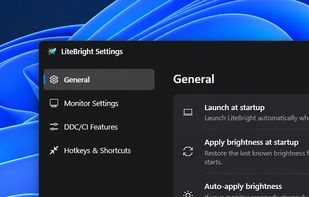
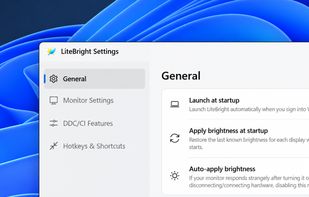
LiteBright is a lightweight native brightness controller for Windows 10 and 11. It lets you control brightness across multiple monitors from the system tray, adjust displays independently or together, and use global keyboard shortcuts for quick changes.