• GParted icon
  • MiniTool Partition Wizard icon
  • dd icon
  • balenaEtcher icon
  • Rufus icon
  • +3

Want to reinstall Windows or install Linux on your computer? Try these tools.

PaulPaul8 appsUpdated
Copy a direct link to this comment to your clipboard

So you've decided to give Linux a shot, and you've found a distribution that suits you. Or maybe you want to reinstall Windows because it's running slow, infected with viruses, or won't boot. No matter what kind of trouble your computer is having, here's a list of tools to do a clean install of Windows or Linux on your computer.

So, first thing first, if you want to install https://alternativeto.net/software/windows-10/, you can grab the ISO file on the Microsoft website and buy a license from there too. And if you want to install a Linux distribution, I invite you to take a look at the various distributions that exist or to take this simple test in order to choose the one that fits your needs the most. You can then download the ISO image of your choice on the distro's official website.

  1. GParted icon
     Like

    Manage partitions with ease, supporting resizing, moving, and copying. Utilize GParted Live for cross-platform use on x86 machines.

    Cost / License

    • Free
    • Open Source

    Application type

    Platforms

    • Linux
    GParted screenshot 1
    GParted screenshot 1
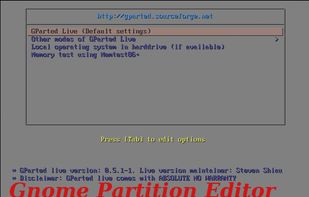
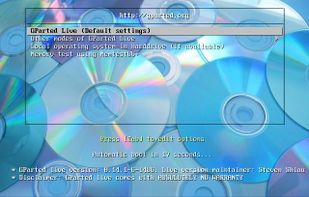
    GParted Live boot menu.
    +2
    GParted screenshot 3
    PaulPaul’s note

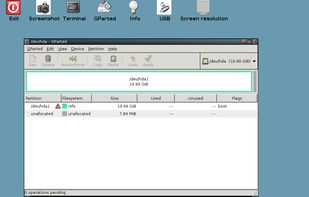
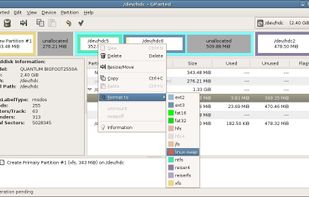
    First, you may need to format or edit the partitions on your disk. GParted is probably the most reliable and well-known tool to do that on Linux. It's a GTK+ front-end to GNU Parted and the official GNOME icon GNOME Partition Editor application. It is used for creating, deleting, resizing, moving, checking, and copying partitions and the file systems on them. This is useful for creating space for new operating systems, reorganizing disk usage, copying data residing on hard disks, and mirroring one partition with another (disk imaging).

  2. Manage partitions with MBR/GPT conversion, NTFS/FAT32 support, and robust data recovery on 32/64 bit Windows. Free Edition available for users.

    Cost / License

    • Freemium
    • Proprietary

    Application type

    Platforms

    • Windows
    Home Window
    Main Window
    Right Click on a Disk
    +13
    Right Click on a Partition
    PaulPaul’s note

    If you're already on Windows, you might want to try MiniTool Partition Wizard, which seems to be the best alternative to GParted. It's a partition manager software that supports 32/64 bit Windows Operating System and offers a free and paid version.

  3. dd icon
     Like

    dd, that stands for ‘data duplicator’, is a command-line utility for Unix mainly used for copying and converting data.

    Cost / License

    • Free
    • Open Source

    Application type

    Platforms

    • Mac
    • Linux
    • BSD
    PaulPaul’s note

    dd is a command-line utility for Unix and Unix-like operating systems whose primary purpose is to convert and copy files. Thus, you can easily use this command in your terminal to make a bootable USB flash drive from an ISO file.

  4. Ideal for creating bootable USBs and SD cards, ensuring safe, cross-platform use. Open-source, lightweight, and portable with a user-friendly interface.

    Cost / License

    • Free
    • Open Source

    Application type

    Platforms

    • Mac
    • Windows
    • Linux
    balenaEtcher screenshot 1
    balenaEtcher screenshot 1
    balenaEtcher screenshot 2
    +1
    balenaEtcher screenshot 3
    PaulPaul’s note

    If you want to use a tool with a GUI, Etcher is probably your best choice. It works on Windows, macOS and Linux, has a nice user interface, and is pretty fast as well. The program burns images only and can’t compete with more versatile products, but does at least warn you of this. We chose a Windows image, for instance, and Etcher warned us that extra processing was required to make the image bootable, and we should use a tool like Rufus instead. So, it's a great little tool for burning Linux images but if you're trying to burn a Windows 10 image on a USB flash drive, you might want to use Rufus icon Rufus (Windows), Boot Camp icon Boot Camp (macOS) or WinUSB icon WinUSB (Linux) instead. If WinUSB doesn't work for you, take a look at this subject, it might help you.

  5. Rufus icon
     Like

    Formats USB drives to various file systems and creates bootable USBs from ISOs. Supports MS-DOS/FreeDOS bootable sticks and offers BIOS or UEFI options.

    Cost / License

    • Free
    • Open Source

    Application type

    Platforms

    • Windows
    • PortableApps.com
    Rufus screenshot 1
    Rufus screenshot 2
    Rufus screenshot 3
    PaulPaul’s note

    Like said above, Rufus is a small utility that helps format and create bootable USB flash drives. It's a great solution if you're on Windows and want to burn a Windows ISO image on a USB flash drive.

  6. Boot Camp icon
     Like

    Boot Camp is a utility by that assists users in installing Windows 10 on Macs. Boot Camp guides users through non-destructive re-partitioning (including resizing of an existing APFS partition, if necessary) of their hard disk drive and automatically downloads Apple-provided...

    Cost / License

    • Free
    • Proprietary

    Platforms

    • Mac
    Boot Camp screenshot 1
    PaulPaul’s note

    On the other hand, Boot Camp is your best choice if you're on a macOS system. It allows you to create a bootable Windows (7, 8 or 10) USB flash drive easily that works on any computer.

  7. WinUSB icon
     Like

    WinUSB is a simple tool that enable you to create your own usb stick Windows installer from an iso image or a real DVD.

    Cost / License

    • Free
    • Open Source

    Application type

    Platforms

    • Windows
    WinUSB screenshot 1
    PaulPaul’s note

    Finally, if you're on Linux and want to install Windows on a computer, you should try WinUSB, which is – as its name implies – a tool that enables you to create your own USB stick Windows installer from an ISO image or a real DVD.

    To resume, if you're on a macOS, Windows, or Linux computer and want to install Linux, use the dd command line or Etcher. And if you want to install Windows, use Rufus, Boot Camp, or WinUSB depending on the OS you're on.

  8. Ninite icon
     Like

    Ninite is the easiest way to install software. Pick the apps you want, and the Ninite installer will download and install all of your selected apps at once, automatically. It is 100% hands-free; Ninite automatically rejects browser toolbars and other prepackaged junk.

    Cost / License

    • Freemium
    • Proprietary

    Application type

    Platforms

    • Windows
    Ninite screenshot 1
    PaulPaul’s note

    If you've successfully installed/reinstalled Windows on your computer, you can save time by using Ninite to install your favorite software easily and quickly. On macOS, you can use Get Mac Apps icon Get Mac Apps – which is pretty great – to install multiple macOS apps automatically with one command. On Linux, there is no real alternative to Ninite but you can use apt-get (or another package manager like pacman or rpm) to install multiple software at once from the command line.


With these tools, you should be able to easily install Linux or Windows on your computer, no matter what operating system you're using. If you think we missed an important tool or some information about a tool we listed, feel free to tell us, we're not perfect!

PS: I haven't mentioned https://alternativeto.net/software/unetbootin/ in this list because many users – myself included – are having trouble creating a bootable USB flash drive with this tool recently (just look at the reviews on the UNetbootin's AlternativeTo page).

No comments so far, maybe you want to be first?