

ZenCapture icon
ZenCapture icon

ZenCapture

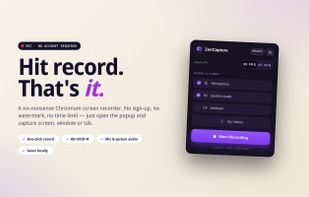
Free Chrome extension for screen recording with no time limit, no watermark, and no sign-up. All recordings stay on your computer.
ZenCapture screenshot 1

Cost / License

  • Free
  • Proprietary

Platforms

  • Google Chrome
0likes
0comments
0articles

Features

Properties

  1.  Lightweight
  2.  Privacy focused

Features

  1.  No registration required
  2.  Works Offline
  3.  Dark Mode
  4.  No Tracking
  5.  Support for 4K
  6.  Ad-free
  7.  Screen Recording
  8.  Record videos

ZenCapture News & Activities

Highlights All activities

Recent activities

ZenCapture information

  • Developed by

    isdevpro
  • Licensing

    Proprietary and Free product.
  • Alternatives

    51 alternatives listed
  • Supported Languages

    • English
    • Indonesian
    • Spanish
    • German
    • Chinese
    • Japanese
    • Korean
    • French
    • Russian
    • Ukrainian
    • Serbian
    • Turkish
    • Armenian
    • Azerbaijani
    • Kazakh
    • Portuguese
    • Turkmen
    • Vietnamese
    • Thai
    • Italian
    • Slovak
    • Slovene
    • Polish
    • Danish
ZenCapture was added to AlternativeTo by isdevpro on and this page was last updated .
No comments or reviews, maybe you want to be first?

What is ZenCapture?

ZenCapture is a Chrome extension that allows you to record your screen, a tab, or a single application window. The recordings are processed locally and saved as WebM files in your downloads folder. It's ideal for creating bug reports, software walkthroughs, lectures, and gameplay clips without the need for an account, upload, watermark, or time limit.

It can capture the entire screen, a specific application window, or a single Chrome tab with up to 4K resolution, 15, 30, or 60 FPS with adjustable bitrate. It also offers an optional countdown before recording starts and a webcam overlay.

The extension can capture system audio from a tab, application, or media playing on your machine, microphone input, and a mixed track with both sources synchronized.

Recordings never leave your computer and there is no usage tracking or account requirement. The output files are standard WebM that play in Chrome, Edge, and VLC, and can be imported into most video editors without conversion.

However, on macOS, system audio capture from applications outside Chrome is restricted at the OS level. The workaround is to record a specific Chrome tab as the audio source.

The default keyboard shortcut for starting and stopping a recording is Shift + Alt + R, which can be customized from Chrome's extension shortcuts settings.