

UFTI icon
UFTI icon

UFTI

 Like

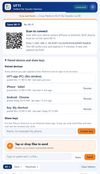
UFTI (Unified File Transfer Interface) is a free, open-source app that sends files, photos, videos and text between a Windows 11 PC and an iPhone or Android phone over your own Wi-Fi. It has no cloud, no account and nothing to install on the phone.
UFTI screenshot 1
UFTI screenshot 2
+1
UFTI screenshot 3

Cost / License

  • Free
  • Open Source (MIT)

Since

  • New

Platforms

  • Windows  [https://github.com/iamrahulkv/UFTI/releases/tag/v1.3.2](https://github.com/iamrahulkv/UFTI/releases/tag/v1.3.2)
  • Android
  • iPhone  [https://github.com/iamrahulkv/UFTI/releases/tag/ios-v1.1.1](https://github.com/iamrahulkv/UFTI/releases/tag/ios-v1.1.1)
0likes
0articles
Save

Features

No features, maybe you want to suggest one?

Highlights All activities

UFTI News & Activities

Recent activities

UFTI information

AlternativeTo Category

File Sharing
UFTI was added to AlternativeTo by iamrahulkv on and this page was last updated .

No comments or reviews, maybe you want to be first?

Official Links

What is UFTI?

UFTI (Unified File Transfer Interface) is a free, open-source way to move files between a Windows 11 PC and an iPhone or Android phone, in the spirit of AirDrop. Apple doesn’t allow third-party apps to send files to Windows over Bluetooth, so UFTI uses your local network instead. It is private, fast, and needs no account.

How it works Open UFTI on the PC and scan its QR code with the phone camera. The phone opens UFTI in its browser (Safari, Chrome, Samsung Internet or any other), so there is nothing to install on the phone. Send and receive files and text in both directions. Everything shows up on both devices instantly, with progress bars.

Features

  • Private by design. Files go straight from device to device on your network. There is no cloud server, no sign-up and no tracking.
  • One-time QR pairing. Each QR code works once and expires after 5 minutes. Every paired phone gets its own session, listed on the PC, and you can remove any device at any time.
  • Works with or without Wi-Fi. Use your home network, or switch to No Wi-Fi mode and let the PC create a hotspot, or use an iPhone or Android hotspot over Wi-Fi or USB. Transfers never use mobile data or the internet.
  • Both directions. PC to phone and phone to PC.
  • Any file size. Files stream straight to disk, so multi-gigabyte videos work.
  • Text and links. Share a URL or a note, with one-tap copy.
  • Copy without saving. Received images and files have a Copy button, so you can paste a photo straight into a chat or document.
  • History on both sides. All, Sent and Received tabs with times, and a Clear history option.
  • Share-sheet support. Add a “Send to PC” entry on iPhone with a free iOS Shortcut, or on Android with a share app such as HTTP Shortcuts.
  • iPhone app. The iPhone can also host UFTI, so an Android phone can send files to it. The app can scan another UFTI’s - QR code and transfer inside the app, with no browser.
  • Light and dark themes, tray icon, optional start with Windows.

Good to know

  • It is not Bluetooth or proximity-based like AirDrop. It needs a shared network or a hotspot, and a QR scan to pair.
  • Traffic on the local network is not encrypted, so it isn’t recommended on public Wi-Fi. The PC hotspot mode gives you a private network.
  • The Windows installer is not code-signed yet, so SmartScreen shows a warning on first run.
  • The iPhone app is not on the App Store. You install it yourself with a free Apple ID, and the repo has a step-by-step guide.