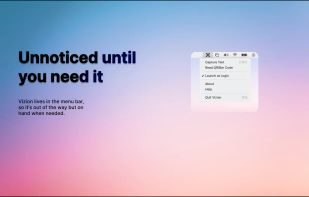
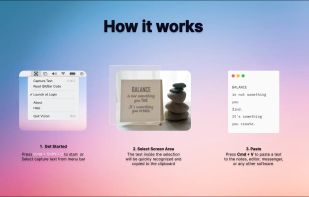
OCR powered screen-capture tool to capture information instead of images.
Cost / License
- Free
- Open Source
Application type
Platforms
- Mac
- Windows
- Linux
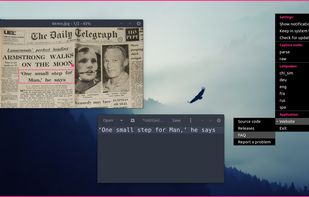


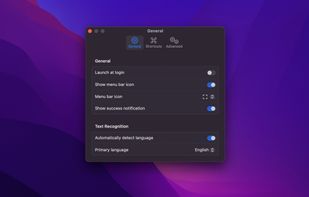
Apps similar to Textify include NormCap, which is free and open source. Other options are Capture2text, Text Lens, ABBYY Screenshot Reader and Text Grab. You're spoiled for choice with Screenshot Capture Tools like Textify: we list more than 25 alternatives for Mac, Windows, Android, iPhone and Linux.
OCR powered screen-capture tool to capture information instead of images.

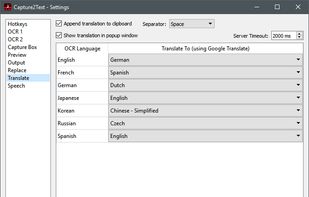
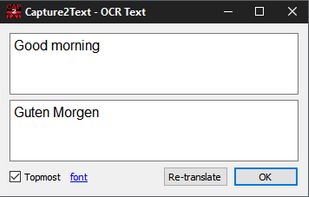
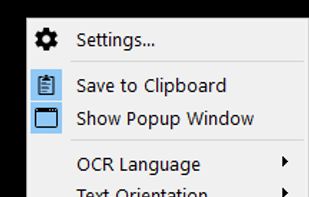
Capture2Text enables users to quickly OCR a portion of the screen using a keyboard shortcut.
 United States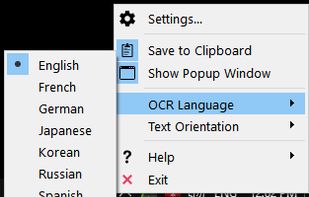


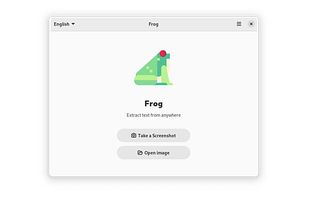
Extract text from anywhere on your screen (OCR). Perfect for capturing text from videos, PDFs, presentations, or any app where copying isn't possible.
 Norway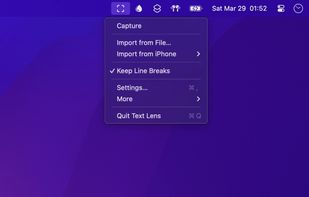


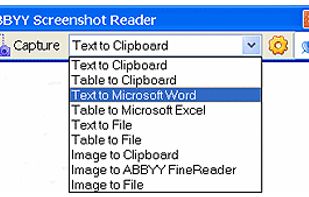
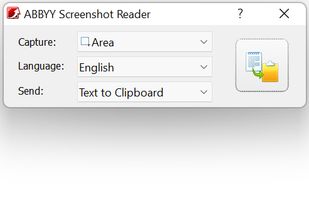
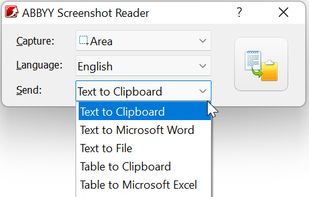
Screenshot Reader is a smart OCR-screenshot application for capturing text and images from any area on your PC screen and extracting text from them or just saving as an image. Prize: 9.99 USD.
 Russia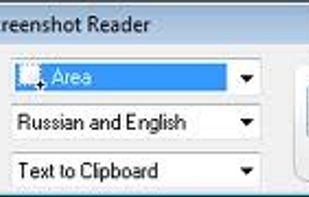


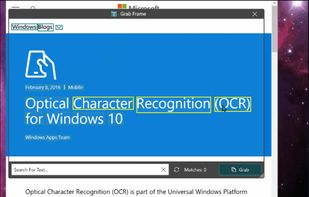
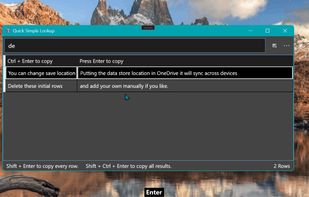
Text Grab is a minimal optical character recognition (OCR) utility for Windows 10/11 which makes all visible text available to be copied.
United States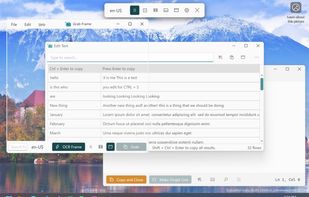


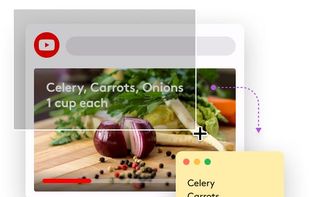
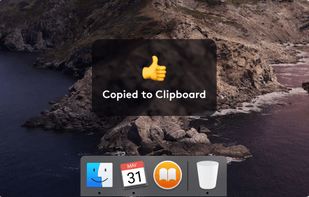
TextSniper is a super useful app to quickly capture unselectable text. Use it to capture and recognize text from presentations, trainings, screencasts,images, pictures, webpages, video tutorials, photos, PDFs etc. Literally from anywhere on your mac's screen.
United States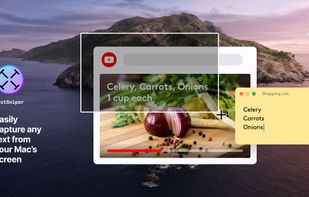


GetWindowText lets you grab text from static system messages via drag-and-drop. The program lets you work with most windows containing text including Edit, Static, Groupbox - Controls, etc.
 Germany
 EU
EU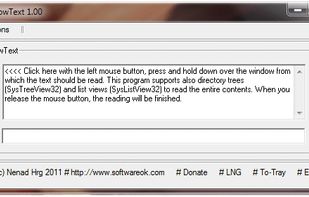


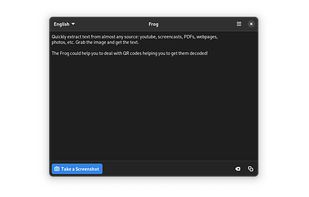
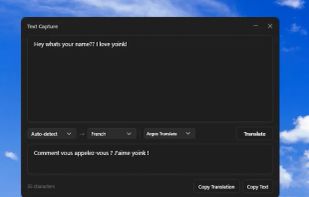
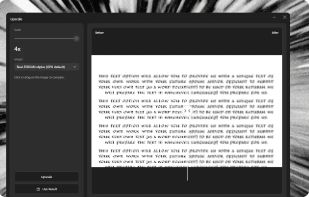
Quickly extract text from almost any source: youtube, screencasts, PDFs, webpages, photos, etc. Grab the image and get the text.
 EstoniaEU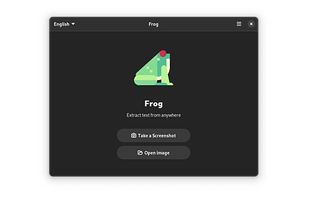



 EstoniaEU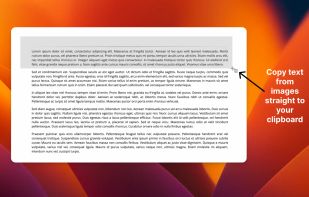


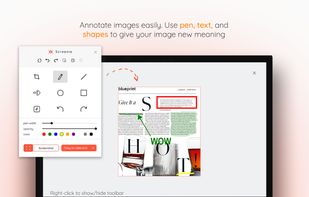
💥 Capture and share your ideas quickly and easily with Screenie - the ultimate screenshot tool for designers, developers, and anyone who needs to share information efficiently. Simply take a snap, annotate it, and copy it to the clipboard in seconds.
 Canada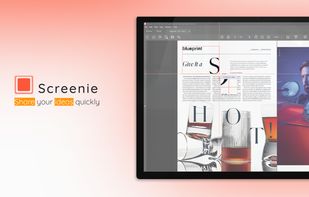
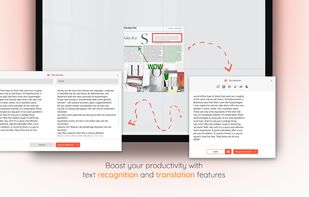
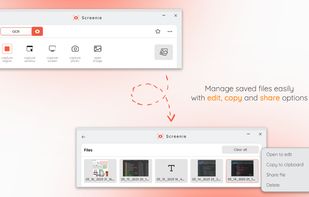


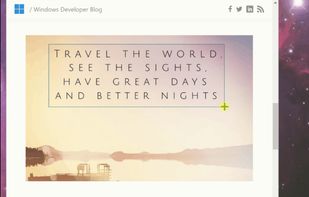
Never get annoyed by unselectable text on websites, PDFs, images or system user interfaces again. Just select the region of your screen in the same manner as you would take a screenshot and find all recognized text in your clipboard ready to get pasted anywhere.