





Cornice App
1 like
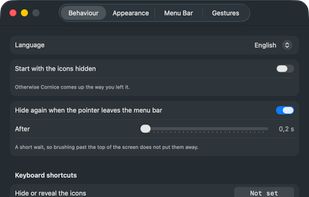
Free, open-source menu bar manager for macOS 26+. Hide and reveal with one click, and that half needs no permissions at all. Optional title-bar trackpad gestures for moving windows.

Cost / License
- Free
- Open Source (GPL-3.0)
Application type
Platforms
- Mac


Features
Cornice App News & Activities
Highlights All activities
Recent activities
 fif7y added Cornice App as alternative to Pelmet
- Paul added Cornice App as alternative to Barred
- Ben liked Cornice App
- SnowDrit added Cornice App
- Paul updated Cornice App
 SnowDrit added Cornice App as alternative to Bartender, Hidden Bar, Thaw, Sanebar and 6 more


Cornice App information
Developed by
SnowDritLicensing
Open Source (GPL-3.0) and Free product.Written in
Alternatives
12 alternatives listedBadge
Get an embeddable badge for Cornice AppSupported Languages

AlternativeTo Category
OS & UtilitiesGitHub repository
- 6 Stars
- 0 Forks
- 0 Open Issues
- Updated


No comments or reviews, maybe you want to be first?