


Screen capture in real time and send instantly to any destination: clipboard, file, graphic editor, studio, e-mail, web, Windows Instant Messenger, ICQ, printer/fax.
Cost / License
- Paid
- Proprietary
Application type
Platforms
- Windows


Snappy is described as 'Desktop-capture software for Microsoft Windows that allows to capture the screen of your monitor. Compared to other similar applications, Snappy could be less complete, but my purpose is to keep it as immediate as I can. Try it, and let me know if I'm wrong' and is a screenshot capture tool in the photos & graphics category. There are more than 100 alternatives to Snappy for a variety of platforms, including Windows, Mac, Web-based, Google Chrome and Linux apps. The best Snappy alternative is ShareX, which is both free and Open Source. Other great apps like Snappy are Greenshot, PicPick, Snipping Tool and FastStone Capture.
Screen capture in real time and send instantly to any destination: clipboard, file, graphic editor, studio, e-mail, web, Windows Instant Messenger, ICQ, printer/fax.


Automatic screenshot taker/automatic screen capture program. Have it take a screenshot every X seconds, and not only have the screenshots saved to disk, but also have them e-mailed, uploaded to a web server via FTP, and uploaded to an ImageShack account.
 United States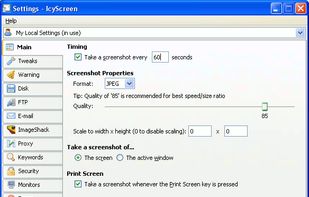


informUp screen capture is a free screen capture software for you to easily take screenshots.


PrintKey-Pro is a screen capture program that can capture the screen or any part of it with the press of the Print Screen key (or any other key you configure).


Small and free screenshot app for Mac that offers custom area and resolution presets, and much more.
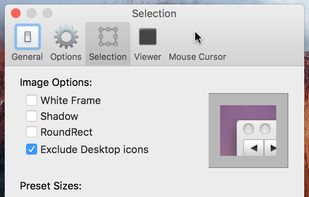

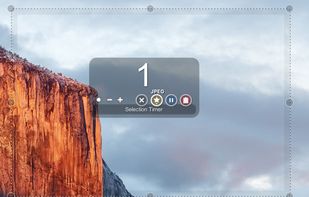


This is the handiest way to screen capture, edit selected areas on the screenshots, and sharing with others.
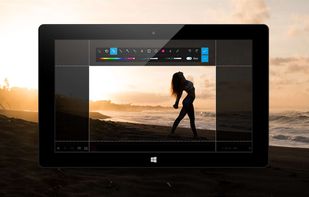
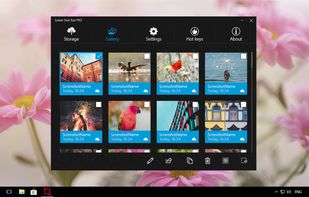




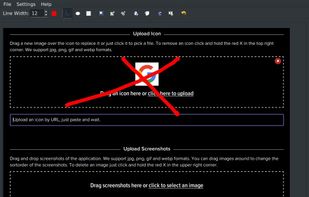
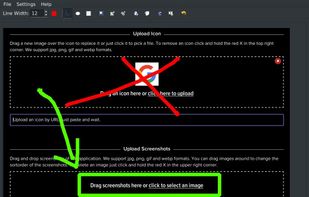


A macOS app for capturing, annotating and sharing screenshots. Quickly add comments, highlight what matters or blur any sensitive content. Upload screenshots to Google Drive or Dropbox. Copy screenshots to the clipboard and paste them directly into Slack, Skype, Jira, Trello and...


Hippo Video is an online video platform to create explainer videos, educational videos, how-tos, training videos, customer testimonials, video assignments, video tutorials, host videos and a video marketing platform.


Vov Screen Recorder is handy tool to record the computer screen, i.e., record the ongoing activities on the screen. Using Vov Screen Recorder, you can record your screen to create a how-to video to demonstrate working of a program, compile a products demo video for some client...
 Türkiye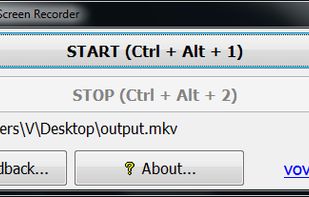


 Russia


