Welcome to Open Publisher! This is a lightweight, web-based desktop publishing tool that allows you to create documents, flyers, brochures, and fun designs on any device in any modern browser.
THE INTERFACE OVERVIEW
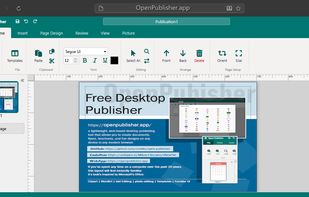
If you’ve used a computer in the past two decades, this will look familiar
the interface is inspired by classic Microsoft Office.
• Title Bar: Document name, Undo/Redo, and coordinates.
• Ribbon Menu: The tabbed area (Home, Insert, Page Design) containing all tools.
• Sidebar (Left): Page thumbnails for navigation.
• Canvas (Center): Your workspace/paper.
• Zoom Controls (Bottom Right): Quick toggles (60% - 150%).
FILE MANAGEMENT (File Tab)
• New Project: Wipes the canvas to start fresh. (Warning: Unsaved changes will be lost).
• Save as PDF: Renders the current page as a high-quality PDF image.
• Save Source: Downloads a .json file. This is your "Master File." Keep this to edit text or move objects later.
• Open Source: Upload a .json file to resume work.
• Print: Opens the browser print dialog.
CORE EDITING CONCEPTS (Home Tab)
• Selection: Click once on any object to select it.
• Movement: Drag an object to move it.
• Resize: Drag the white square handles. Drag past the opposite edge to "flip" (mirror) the object.
• Rotate: Use the Green Handle at the top of a selection.
• Layering: Use Front/Back buttons to reorder objects.
• Clipboard: Standard Copy/Paste buttons (or Ctrl+C/V).
WORKING WITH TEXT
• Inserting: Go to Insert > Text Box.
• Formatting: Use the Home Tab (Font Picker, Size, Bold/Italic, Color) or the Floating Toolbar that appears next to selected text.
• WordArt: Go to Insert > WordArt for 60 pre-styled graphical text effects (3D, gradients).
IMAGES & GRAPHICS (Insert Tab)
• Picture: Upload JPG/PNG files.
• Clipart: Insert high-quality vector icons.
• Shapes: Circles, Stars, Arrows, Callouts.
• Ads: Pre-made stickers (e.g., "Sale", "50% Off").
[Image Tab (Contextual)] Appears when an image is selected:
• Recolor: Grayscale, Sepia, Tints.
• Crop: Drag handles to resize frame; drag image to pan inside.
PAGE DESIGN (Page Design Tab)
• Size & Orientation: A4/Letter, Portrait/Landscape.
• Margins: Toggle blue guide lines.
• Borders: Basic lines or Fancy Borders (Art Deco, Floral).
• Themes: One-click background colors/patterns.
MULTI-PAGE DOCUMENTS
• Sidebar: Click thumbnails to switch pages.
• Add/Delete: Use the + button or Red X on thumbnails.
• Headers/Footers: Dedicated typing areas that repeat per page.
TEMPLATES
Go to File > Templates to browse categories like Resumes, Flyers, and Menus.




 William Dahlheim added Open Publisher as alternative to Quaterio
 Mikey Ellis added Open Publisher as alternative to LibreOffice - Draw and Swift Publisher
 Mikey Ellis added Open Publisher as alternative to Microsoft Publisher, Adobe FrameMaker and Growly Write
 Mikey Ellis added Open Publisher as alternative to RagTime, VivaDesigner, Adobe InDesign and Scribus


 rmellis



No comments or reviews, maybe you want to be first?