
FileOctopus icon
FileOctopus icon

FileOctopus

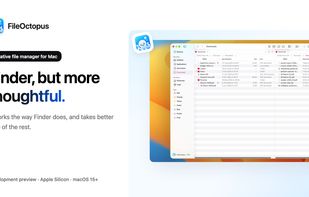
FileOctopus is a native file manager for Mac. The same views, shortcuts and Quick Look as Finder, with more care for everyday file work.
FileOctopus screenshot 1

Cost / License

  • Freemium (Pay once)
  • Proprietary

Application type

Platforms

  • Mac
  • Homebrew
0likes
0articles
Save

Features

Properties

Features

Highlights All activities

FileOctopus News & Activities

Recent activities

FileOctopus information

  • Developed by

    VN flagMax Luong
  • Licensing

    Proprietary and Freemium product.
  • Pricing

    One time purchase (perpetual license) ranging between $15 and $30 + free version with limited functionality.
  • Alternatives

    51 alternatives listed
  • Badge

    Get an embeddable badge for FileOctopus
  • Supported Languages

    • English
FileOctopus was added to AlternativeTo by Paul on and this page was last updated .

No comments or reviews, maybe you want to be first?

What is FileOctopus?

FileOctopus is a native file manager for Mac. The same views, shortcuts and Quick Look as Finder, with more care for everyday file work.

It works the way Finder does, so there’s nothing to relearn. It just takes better care of the things Finder leaves to you.

Features:

Everyday file work, upgraded. The jobs Finder leaves to you, done in one window.

  • One window. Up to 16 panes: Split any pane left, right, up or down, as many times as your work needs, up to 16 panes in one window. Drag files between them.
  • Search the way you remember: Type “pdfs from last week” and it becomes filters you can see and edit. Search covers only the folders you approve.
  • Collect as you go. Copy once: Add files from any folder to the window’s Shelf while you browse, then copy or move them all into the active pane in one step.
  • Find the words inside your files: Search with content: to find text inside PDFs, and text in screenshots and other images, read on your Mac.
  • Save a layout. Open it again: Save the windows, tabs and panes you’re working with as a named workspace, then bring them back any time from Window ▸ Open Workspace.
  • Jump anywhere. Type a few letters: Press ⌃⌘P and type part of a name to open a recent folder, a favorite, another open tab or a saved workspace. Start with > to run any menu command, or press ⌃⇧⌘P. Go to Folder suggests folders as you type a path.