





TCPView
34 likes
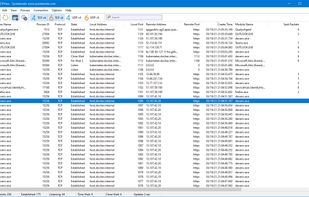
Displays active TCP and UDP endpoints, including local and remote addresses, connection states, and owning processes. Provides real-time color-coded updates, adjustable refresh, IP resolution, and options to close connections or export data for analysis.

Cost / License
- Free
- Proprietary
Platforms
- Windows
- PortableApps.com


Features
TCPView News & Activities
Highlights All activities
Recent News
No news, maybe you know any news worth sharing?
Share a News Tip
Recent activities
- Danilo Venom updated TCPView
 Danilo Venom added TCPView as alternative to TCP Viewer
 Mauricio B. Holguin added TCPView as alternative to PortKiller

TCPView information
Developed by
 Mark Russinovich
 Licensing
Proprietary and Free product.Alternatives
16 alternatives listedBadge
Get an embeddable badge for TCPViewSupported Languages
AlternativeTo Category
Network & Admin

Featured in Lists


Useful Windows programs
Clean, small, use!
For activation use: https://massgrave.dev/ or https://github.com/massgravel/Microsoft-Activation-Scripts
For all windows USE OFFICIAL MS SITE if u can / for reserv use this: https://massgrave.dev/genuine-installation-media
For office download use: https://gravesoft.dev/office_c2r_links


Cyber security list
A list with 21 apps by MartinO without a description.
No comments or reviews, maybe you want to be first?