

ReplayMac
Like
macOS menu bar instant-replay clipper, basically ShadowPlay for your Mac.
Features
Properties
- Privacy focused
Features
- No registration required
- Support for Multiple Monitors
- Works Offline
- Hardware Accelerated
- Dark Mode
- No Tracking
- Ad-free
- Support for Hotkeys
- Sits in the MenuBar
- Record and replay
- Instant Replay
- Screen Recording
Tags
ReplayMac News & Activities
Highlights All activities
Recent activities
- POX added Screen Recording as a feature to ReplayMac
- POX added ReplayMac as alternative to OBS Studio, GPU Screen Recorder, Bandicam and VokoscreenNG
- POX added ReplayMac
ReplayMac information
No comments or reviews, maybe you want to be first?
What is ReplayMac?
ReplayMac is a macOS menu bar instant-replay clipper.
It continuously buffers recent screen/audio capture and saves the last N seconds to an MP4 when triggered. Recording and save state stay visible in the menu bar so you always know what the app is doing. Features
- Instant replay — Continuously buffers the last N seconds (15–300) of screen and audio; save retroactively with a click or hotkey.
- Dual display support — Capture one or two monitors, saved as a side-by-side composite or as separate files.
- Hardware-accelerated encoding — HEVC or H.264 via VideoToolbox, with configurable resolution, frame rate, and bitrate.
- System audio + microphone — Capture all apps, no audio, or one selected app. Mic and system audio merge into a single track by default; optionally keep as separate tracks inside the MP4.
- Live audio level meters — Real-time RMS-based level meters for system audio and microphone in audio settings.
- Ring buffer memory management — Configurable memory cap (256 MB–4 GB) shared across all replay buffers, with automatic eviction under memory pressure.
- Extended replay buffer — Optionally roll 5, 10, or 30 minute replay windows to disk, with SSD write and disk usage warnings before enabling.
- Six configurable hotkeys — Save clip, toggle recording, save last 15s, save last 60s, save extended replay, open clip library.
- Clip library — Browse, preview, trim, export, or export as GIF; rename, tag, favorite, and batch-act on multiple clips at once.
- Clip sharing — Open the macOS share sheet or copy a clip file for pasting into another app.
- Clip organization — Search clips, mark favorites, add display names, tags, and notes.
- Storage cleanup — View total library size and move non-favorite clips to Trash by age or in bulk.
- Capture profiles — Save named video/audio/buffer configurations and switch between them on demand.
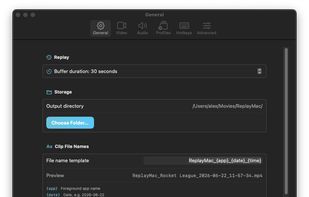
- Customizable file-name templates — Name clips with {app}, {date}, and {time} tokens, with a live preview in Settings > General.
- Quality presets — Performance, Quality, Ultra, and Custom modes that tune resolution, frame rate, and bitrate together.
- Live settings — Capture, encoding, and audio changes apply while recording; no restart required.
- Reliable save flow — Preflight checks block saves when not recording, while the buffer is filling, or when disk space is too low.
- Clear menu bar status — Live badge shows recording state, buffered time, and save progress. Last saved clip is one click away from the menu.
- Notifications — Optional sound and banner on save, with Open and Reveal in Finder actions on the notification; operational alerts for failures and capture events.
- Launch at login & auto-start — Optionally begin recording automatically on login.
- Update availability check — Checks GitHub Releases on launch and shows a download link in the menu when a newer version is available.


