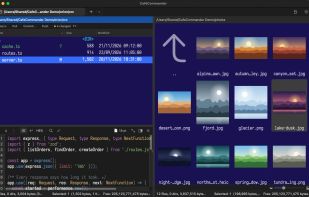
The window holds two file lists side by side, each showing a directory of its own. One of them is the active panel: it has the keys, and its highlight is the only one drawn. Tab moves to the other panel — the cursor goes there, not just the highlight — and a click on a panel makes it active.
Most commands work from the active panel into the other one: F5 copies there, F6 moves there, a diff compares the two. So the usual way of working is to open the source on one side and the destination on the other.
Each panel has a path bar on top (double-click it to copy the path; right-click for Show in Finder and Quick Access) and a status line below: how many files and directories are here and how many bytes they hold, what is selected, and the free space on the volume. .. always sits at the top of the list and directories come before files.
One window holds many tabs, and each tab is a whole workspace of one of three kinds, for good:
Files — the two panels, with their places, cursors, selections and previews;
SQL — a database client in place of the panels (see SQL mode);
Terminal — a terminal (see Terminal tabs).
The tab bar runs along the top of the window. Right after the last tab, a split button [+ | ⌄]: the + opens a tab of the same kind as the rightmost one, the caret offers Files, SQL or Terminal. A right-click anywhere on the bar offers the same, and on a tab also Close and Close Others. Drag a tab onto another to reorder; a middle click closes it. An orange dot on a tab means it is waiting for you while you are elsewhere — a password, a name already taken, a failure not yet read.
F3 opens a preview of the file under the cursor beside the list, and it follows the cursor as you move. What the system’s Quick Look can show — PDF, images, video, audio, Office and iWork documents — shows here, and the app draws some of its own:
Text and source code, coloured (see Syntax colouring), shown whole up to 32 MB. Files with very long lines, such as minified JSON, are shown broken into lines (the file itself is untouched).
Images: zoom, fit, 1:1, rotate left and right (the file isn’t touched), and an info sheet with everything the file carries — Exif, GPS, IPTC and more — with Copy All. Hold Space to pan with the mouse.
PDF: zoom, fit a whole page or the page width, previous and next page, and a page field to jump to.
Video and audio in the system player, paused on arrival; a click on the picture plays or pauses. WebM plays as well.
HTML opens as its source; the globe button switches to the rendered page. JSON, YAML and XML have a tree switch that shows keys and values as an outline.
SQLite databases open as tables — see SQLite files.







 Ignacio Casinelli Esviza added CaféCommander as alternative to Commander One, ForkLift, Midnight Commander and Total Commander

 Nacho Casinelli Esviza


No comments or reviews, maybe you want to be first?