What it does
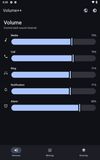
Android's real volume panel is a single, fixed UI tied to whatever version of Android you're running, and it only lets you control per-stream volume (media / ring / alarm / notification) — never individual apps. Volume++ replaces that panel outright and fills in both gaps:
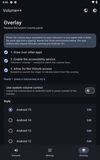
A custom volume panel that intercepts the hardware volume keys. An Accessibility Service captures volume-up/volume-down presses before the system does, suppresses the stock panel, and draws its own floating overlay instead — with the same press-and-hold ramping behavior as the real thing.
Faithful recreations of every major Android volume-panel design, Android 7 through 16. The overlay isn't one fixed look — it can render the classic Android 7/8 top sheet, the Android 9–11 collapsed-edge-control-plus-"Sound"-sheet layout, Material You's Android 12 panel, and the Android 13/14/15/16 "Sound & vibration" sheet (including Android 15's redesigned "Audio will play on" media-output picker, and Android 16's call-folded take on it). You pick which version's panel you want, independent of the Android version actually installed on the device.
A live, on-screen WYSIWYG editor for repositioning every panel component (main panel, expanded sheet, output picker) per orientation by dragging it around the screen, and a color editor that lets you tap any element of the panel — background, slider fill/track, icons, accent, text, buttons — to recolor it, independently for each Android-version skin. Colors can be dialled in on a wheel or lifted straight off the screen with the eyedropper. The expanded sheet can also be narrowed (separately for portrait and landscape), docked to another edge or a bottom corner, and made see-through.
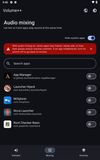
Per-app volume mixing, via Shizuku or root: the panel can show one volume slider per currently-playing app (not just per stream) and set that app's actual playback volume using a hidden system API, plus toggle whether an app is allowed to take audio focus at all — i.e. whether it's allowed to pause everything else when it starts playing, which is what makes true audio mixing between two apps possible.
A media volume booster, off by default: once media volume is at 100%, pressing Volume Up twice engages extra gain in 5-percentage-point steps, shown as its own bar above the media slider. Maximum boosted volume in Overlay remembers a ceiling from 120% to 150%, with 120% as the default. Each displayed 5 points requests 1.5 dB: 120% is +6 dB and 150% is +15 dB, rather than a linear amplitude percentage. Raising the ceiling leaves the current gain alone; lowering it immediately limits an active boost. Actual loudness depends on the device and material, and higher gain can distort. A held key never engages it — only deliberate presses — and it clears itself when you drop below 100% or change audio output.









 Emin added Volume++ as alternative to NoVolume, EarTrumpet, FluentFlyout, BetterTrumpet and 8 more




No comments or reviews, maybe you want to be first?