


Qoppa PDF Studio
Create, Convert, Review and Edit PDF Documents on Windows, macOS, and Linux.
Cost / License
- Pay once
- Proprietary
Application types
Platforms
- Mac
- Windows
- Linux
- Chrome OS

Features
Properties
- Lightweight
Features
- Edit PDF
- Sign PDF files
- Scan to PDF
- PDF Redaction
- Convert PDF to Word document
- Create PDF files
- Measurement-Tools
- Fill PDF Forms
- OCR
- Dark Mode
- Text to Speech
- Spell Checking
- Ad-free
- PDF annotation
- Batch processing
- Themes
- PDF OCR
- No Subscription
- Bates numbering
- Integrated Search
- Built-in viewer
- Full-Text Search
- Works Offline
- Combine PDF
- Side-by-Side Comparison
- File Comparison
- Support for Javascript
Qoppa PDF Studio News & Activities
Recent News
Recent activities
 BerkerGungor added Qoppa PDF Studio as alternative to ZapPDF
 OperandOps added Qoppa PDF Studio as alternative to MorphPDF
 victorAtSilentEditor added Qoppa PDF Studio as alternative to Silent Editor
 The_Torpenite added Qoppa PDF Studio as alternative to ReamPDF
 DevSoftwareMail added Qoppa PDF Studio as alternative to PDF Reader - Editor, Scan & TTS
 kikyoh-choh added Qoppa PDF Studio as alternative to ShelfStream
 OrdinaryPerson added Qoppa PDF Studio as alternative to PaperKnife
 PDFHouse added Qoppa PDF Studio as alternative to PDF House
 Maaz-Sohail added Qoppa PDF Studio as alternative to Free PDF Editor
 POX added Qoppa PDF Studio as alternative to RevPDF



Featured in Lists

A list with 807 apps by AmileyaRyver without a description.

A list with 209 apps by trishafhhmoam without a description.
What is Qoppa PDF Studio?
Create, Convert, Review and Edit PDF Documents on Windows, Mac OS X, and Linux.
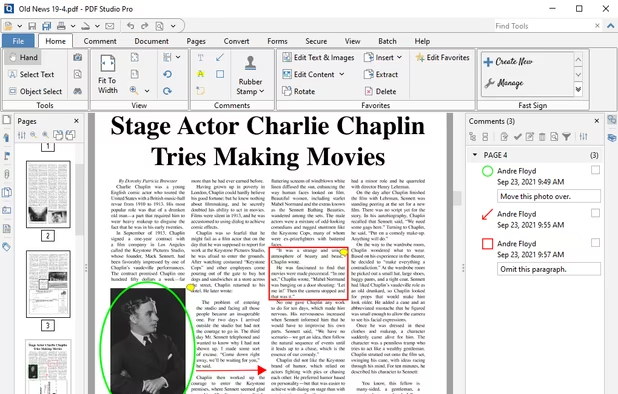
PDF Studio is an all-in-one, easy to use PDF editor that provides all PDF features needed at a fraction of the cost of  Adobe Acrobat Reader and other PDF editors. PDF Studio maintains full compatibility with the PDF Standard.
PDF Studio is available in 3 versions: Viewer, Standard and Pro.
- PDF Studio Viewer
Display PDFs with high fidelity Render all interactive features: Annotations & Form Fields Digital Signatures & Layers Advanced User Interface: Thumbnails & Comments Panes Loupe, Pan & Zoom Rulers & Grids Advanced Print & Search Options Integration with Docusign Integration with Document Storage: Dropbox, Drive, Google Drive
- PDF Studio Standard
All Features in Viewer Plus…
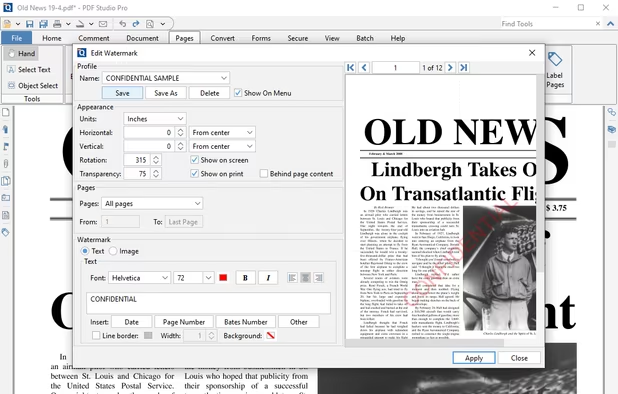
Create PDFs Convert to/from PDFs Scan-To-PDF Annotate and Markup PDFs Fast Sign PDFs Fill In & Save PDF Forms Secure Documents (Passwords) Append / Delete Pages Apply Watermarks, Headers, Footers Create Bookmarks / Table of Contents Loupe, Pan & Zoom, Rulers, etc… Supports the new PDF 2.0 standards Accessibility Color Options Text to Speech (Read Out Loud) Content Explorer Auto Detect Link Convert PowerPoint to PDF
- PDF Studio Pro
All Features in Standard, Plus…
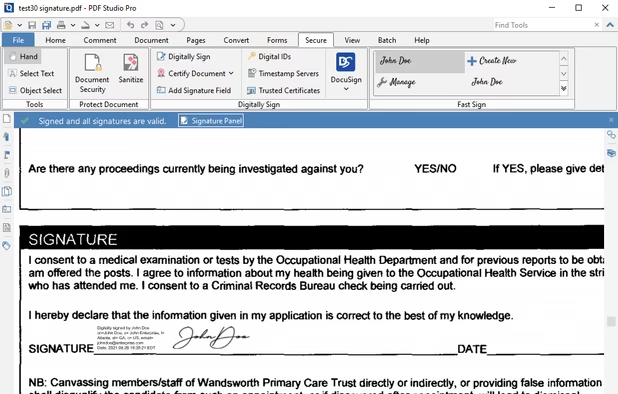
Interactive Form Designer OCR (Text Recognition) Content Editing Permanent Redaction Compare PDFs (Visual & Side by Side Comparison) Optimize PDFs Digitally Sign PDFs Advanced PDF Splitting & Merging Batch Process Multiple PDFs Precision Measuring Tools Preflight Tools Imposition Tag PDFs for Accessibility (PDF/UA) PDF/A Validation / Conversion Advanced Imposition & Printer Marks
Operating Systems Available on: Windows 11, 10, 8.. Monterey, Big Sur, 10.15 Catalina.. Mint, Ubuntu, Elementary OS.. *See full list on website.
Qoppa PDF Studio Videos
Qoppa PDF Studio information
Developed by
 Qoppa Software
 Licensing
Proprietary and Commercial product.Pricing
One time purchase (perpetual license) ranging between $99 and $139.Rating
Average rating of 3.5Alternatives
177 alternatives listedSupported Languages
- English


Comments and Reviews
I was happy with the editing abilities since version 8. Running on Ubuntu Mate 16.10 I print plans very often to wide plotters and often need to print several small detail sheets per page. Before version 11 I had a lot of problems printing, to the point that I couldn't print a standard 8.5 x 11 on my HP Officejet 8600 Pro without major scaling issues. To the point that I had to use adobe reader 9 to print any PDFs. Version 11 has been a much-needed update for the Linux community. Great job adding requested features.
Also, this software isn't cheap, but It is an excellent set of tools for anyone running Linux in a business that requires lots of printing. I've tried Foxit Reader, Master PDF editor, qpdfview (which I use as default viewer because of its excellent speed with large documents) and this really is the only product that is complete, actively developed, and offers much better than expected customer support.
On windows I use PDF-x-Change Pro and recommend it to anyone using windows, Although PDF Studio may now be worthy competition.
The huge opaque water marks diagonally across each page makes it quite unusable even for private use. So you have to buy one.
Info for linux users only:
I have been hunting around for a free linux pdf editor that can produce 'permanent' bookmarks, comments and annotations and I am shocked that its so difficult to find one. In windows there are so many (pdf xchange viewer).
jpdfbookmarks can add bookmarks but not anything else.
okular, one of the best readers cannot do permanent annotations, bookmarks, etc. The ones it adds are stored in its settings. so when we send the file to someone, they won't get it.
If someone finally finds one, please please tell me. :-).............
I think it's become even more difficult to find a good pdf editor for Linux, but it's still just as shocking that one doesn't seem to exist
About Editing PDF Files
Most times it's probably best to just recreate PDF files.
Because although it can be done, PDF is not a format that's meant to be editable in the first place. It's a "compiled" Document that contains binary blobs - aka content streams, which are (depending on the quality of the creatig software) highly optimized as they are - and editing them will make things rather messy in most cases. That's like editing compiled software.
More interesting would be document structure etc. To have Software which extracts everything from content, index, table of contents to the document metadata and exports it into different formats (like HTML, Markdown, Pandoc, etc.).
For PDF's with complex, required style you'd of course need an editor, draw onto the PDF ¹ (with i.e. Xournal++) - or convert it into an image and edit that. ²
As for PDF viewers: I use Evince since it offers great performance, can both annotate & highlight text, fill forms, etc. It's a good basic viewer.
¹ Warning: This doesn't remove anything! ² A vector image could preserve a lot of stuff - if you have software which honors all this stuff while converting it. And good vector editing software & skills…
I've been using MasterPDF Editor v4.3.89 (free version without watermarks) since years now. It works pretty decently on linux.
This software is a great tool for viewing PDF files, especially geoPDFs for mapping purposes. The software is lightweight, easy on RAM and battery, and allows for individual layers to be turned on and off. The only issues I've had with it are the controls being difficult to see in direct sunlight.
It does not allow images and text to be rotated at any angle.
Don't understand if future updates will be free of charge with this expensive ~$170 perpetual license: "...The license is perpetual and allows to continue using the purchased version of our software... Any upgrade to future major versions is optional". Two weeks refund policy is also a bit shady to me: "...we will refund your order within 2 weeks of purchase. A 5% charge on the order total might be applied, with a minimum of $5, for credit card and processing fees". You also have to contact support first, then complete a form asking for refund... etc. etc.
Awesome alternative to Adobe Reader
The free version is only a reader, and that’s okay. But I can’t find the Standard version on their website (as of August 2024), which is announced here on AlternativeTo, only the Pro version, which costs 179 $ for a single license (1 User on 2 Computers), which is quite expensive, compared to competitor products.
The 2024 version of PDF Studio Pro is great! I have used it on some very large documents (over a gigabyte) and it handles even the largest with ease. These are the features I have used: Pencil feature - This works well on my surface pro. I can use the pen to draw and write comments on documents, and the marker to highlight text. Page resize - I have used this to resize from A4 to letter. As well as resizing the page, you can also scale the contents which is very handy! Redacting - I have used the redaction feature to cut sensitive information from documents. I was able to mark the areas to be redacted and then apply them in one hit. Works great! The 2024 version of PDF Studio Pro is quick and responsive. I recommend it. https://www.qoppa.com/pdfstudio/