
Mowji icon
Mowji icon

Mowji

 Like

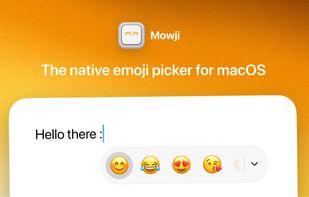
Mowji is a native emoji picker for macOS that lets you find and insert emoji directly where you type. With the colon selected as your trigger, type a word such as :smile, use the arrow keys to choose a result, and press Return to insert it without leaving the text field.
Mowji screenshot 1

Cost / License

  • Pay once
  • Proprietary

Since

  • New

Platforms

  • Mac
0likes
0articles
Save

Features

Features

Highlights All activities

Mowji News & Activities

Recent activities

Mowji information

  • Developed by

    IT flagwize.io
  • Licensing

    Proprietary and Commercial product.
  • Pricing

    One time purchase (perpetual license) that costs $8.
  • Alternatives

    30 alternatives listed
  • Badge

    Get an embeddable badge for Mowji
  • Supported Languages

    • English
Mowji was added to AlternativeTo by wizeio on and this page was last updated .

No comments or reviews, maybe you want to be first?

Official Links

What is Mowji?

Mowji is a native emoji picker for macOS that lets you find and insert emoji directly where you type. With the colon selected as your trigger, type a word such as :smile, use the arrow keys to choose a result, and press Return to insert it without leaving the text field.

Favorites

  • Save up to 30 Favorites and drag them into your preferred order.
  • Choose Favorites as your starting view to access them when you type the trigger.
  • Add emoji to Favorites directly from the picker.
  • Keep typing to search beyond your Favorites.
  • Mowji learns from the emoji you choose, personalizing everyday searches over time.

Search and browsing

  • Find emoji using descriptive words without knowing their exact names.
  • Search with support for typos and combined words such as “crylaugh”.
  • Use the compact picker for search results or expand it to browse emoji by category.
  • Navigate with the arrow keys, press Return to insert, and press Escape to dismiss the picker.
  • Insert multiple emoji with Shift + Return, keeping the picker open after each selection.
  • Copy the selected emoji to the clipboard with Command + C.
  • Find and insert emoji offline, with searches processed locally on your Mac and no AI service required.

Customization

  • Choose the trigger character that opens the picker.
  • Create custom aliases to find emoji using your own words.
  • Set a preferred skin tone for all emoji that support it.
  • Hide individual emoji from search and browsing, with the option to restore them in Settings.
  • Start with Favorites, Frequently Used, or Popular, or show the picker only after you begin searching.
  • Exclude apps where you do not want the picker to appear.
  • Choose Light, Dark, or System appearance and optionally launch Mowji at login.

Mowji Videos