





FilePop
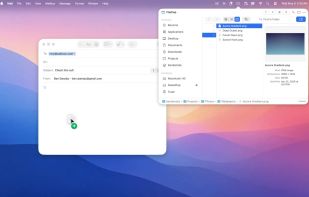
FilePop is a file browser that lives in your menu bar. Hit the global shortcut, the picker pops down from the menu-bar icon, and you're already there — at your favorites, your recents, your home folder, ready to drag a file out, drop one in, or jump to a path with a...

Cost / License
- Pay once
- Proprietary
Platforms
- Mac


Features
Properties
- Lightweight
- Privacy focused
Features
- No registration required
- Ad-free
- No Tracking
- Works Offline
- Drag and Drop
- Global hotkey
- File preview
- Favorites
- Sits in the menu bar
- Support for Keyboard Shortcuts
- Support for Hotkeys
- QuickLook File Preview
Tags
FilePop News & Activities
Recent activities
 POX added FilePop as alternative to File Cabinet
- POX updated FilePop
- POX added FilePop

FilePop information
Developed by
Benjamin DansbyLicensing
Proprietary and Commercial product.Pricing
One time purchase (perpetual license) that costs $10.Alternatives
1 alternatives listedBadge
Get an embeddable badge for FilePopSupported Languages
- English

What is FilePop?
FilePop is a file browser that lives in your menu bar. Hit the global shortcut, the picker pops down from the menu-bar icon, and you're already there — at your favorites, your recents, your home folder, ready to drag a file out, drop one in, or jump to a path with a keystroke.
It's the file browser you reach for when you don't want yet another window competing with the one you're working in.
What's inside
• Drops down from the menu bar. Not a window you have to find. Click the folder icon (or hit the global shortcut) and the picker appears. Click outside, it's gone.
• Drag in. Drop files from anywhere — Finder, Mail, a web browser — onto a sidebar folder or a folder row. Drag with ? to copy, without to move. Drop image bytes from Safari and FilePop saves them as PNG. Drop a URL and it downloads.
• Drag out. Grab any file or folder and drop it on another app — Mail, a chat window, a Finder window, anywhere.
• Spring-load on hover. Hover a folder while dragging, FilePop dives in. Hover its parent, FilePop backs out. Drop where you actually want to land.
• QuickLook with one tap. Select anything and hit Space — preview, navigate with arrow keys, dismiss with Space again.
• Thumbnails in icon view. Real previews of images, PDFs, videos — generated by macOS, cached so they're instant on the second visit.
• Path bar with autocomplete. ??G focuses a path field; child directories of whatever you've typed pop up below, navigable with arrow keys, pickable with return. Recent paths sit behind a clock-arrow button.
• Resizes how you want. Drag a bottom corner to make the popover bigger or smaller. Below a certain width the toolbar search field tucks away; below another, the whole layout collapses to a single column. Wider, everything comes back.
• Sidebar with everything. Recents, Desktop, Documents, Downloads, your home folder, mounted volumes, and Trash, all one click away.
• Keyboard-first. Arrow keys navigate, return opens, ?? enters, ?? leaves, ?[ / ?] go back/forward, ?F focuses search, Space previews.
• Sort by what matters. Name, date modified, date added, size, kind. Folders cluster at the top when sorting by name; mix in with files for everything else.
• Window or popover. Pin it as a free-floating window if you'd rather have it on screen all the time, or keep it as a menu-bar popover. Toggle from the title bar.
• Inspector pane. The right-hand pane shows the selected item — preview, kind, size, date, full path.
Native, sandboxed, no telemetry. Pure SwiftUI + AppKit. No account, no subscription, no upload-anywhere — your files stay on your Mac.