

Edgetree icon
Edgetree icon

Edgetree

A lightweight file explorer that docks to the edge of your Windows desktop, VS Code style — a folder tree that stays open beside your work.
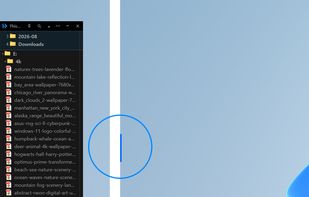
Docked to the left edge of the screen. Click the pin and it tucks away to a short handle at the edge — move your mouse there and it slides back open.

Cost / License

  • Free
  • Open Source (MIT)

Platforms

  • Windows
0likes
0comments
0articles

Features

Properties

  1.  Support for Themes
  2.  Lightweight
  3.  Customizable

Features

  1.  No registration required
  2.  Dark Mode
  3.  Supports Zip files
  4.  Portable
  5.  No Tracking
  6.  Ad-free
  7.  Works Offline
  8.  File Search
  9.  Tree view
  10.  Sidebar

Edgetree News & Activities

Highlights All activities

Recent activities

Edgetree information

  • Developed by

    KR flaglegendsteel11
  • Licensing

    Open Source (MIT) and Free product.
  • Written in

  • Alternatives

    9 alternatives listed
  • Supported Languages

    • English
    • Korean

AlternativeTo Category

File Management

GitHub repository

  •  3 Stars
  •  1 Forks
  •  0 Open Issues
  •   Updated  
View on GitHub
Edgetree was added to AlternativeTo by legendsteel11-dotcom on and this page was last updated .
No comments or reviews, maybe you want to be first?

What is Edgetree?

Edgetree keeps a folder tree docked to the left or right edge of your Windows desktop, the way VS Code's Explorer sidebar sits beside your editor. It is made to work alongside Windows File Explorer rather than take its place — a glance at your folder structure and a jump straight to a file, without opening a full window for it.

Click the pin and the sidebar shrinks to a thin sliver at the screen edge; move the mouse there and it slides back open. It can leave a short handle in the middle of the edge instead, so the screen corners stay clear. Drag the header away from the edge and it becomes an ordinary floating window, and the pin snaps it back.

The tree starts at This PC with every drive listed, expands with a single click on the row, and reopens exactly where you left it. Each folder shows its first 25 items with a "Show N more" row for the rest, so a folder holding thousands of files stays instant.

  • Bookmarks and a favorites panel for the folders you keep returning to
  • Folder search with wildcards; the index is saved, so a folder searched once is ready instantly on the next launch
  • Show only the file types you care about — documents, code, images, media, archives, or your own list of extensions
  • Auto Collapse: expanding a folder closes the others, so only the path you are on stays open
  • Multi-select with Ctrl and Shift, then copy, delete, or drag the whole selection into another app
  • A full right-click menu: open with, cut/copy/paste, rename, new folder, compress and extract zip, copy path, open in terminal, reveal in Explorer, properties
  • Image preview in the right-click menu, with format, pixel size and file size
  • Hide folders or whole drives you never open; they collect in a list to bring back any time
  • Sort by name or date, globally or per folder
  • Changes made in Explorer or any other program — new, renamed or deleted files — show up in the tree without a refresh
  • 15 customizable colors with separate dark and light palettes, plus adjustable font size, indent and row spacing
  • Sharp at 125%, 150% and 200% display scaling
  • Network drives stay usable — a sleeping NAS does not freeze the window
  • Starts with Windows, sits in the tray, and tells you when a new version is out
  • English and Korean, picked automatically from your Windows language

Available as an installer, a single portable .exe, or a small build that uses the .NET 8 Desktop Runtime already on the machine. All three share the same settings in %AppData%\Edgetree, so moving between them keeps your favorites, bookmarks and colors.

Official Links