
ChimbaBenchCL icon
ChimbaBenchCL icon

ChimbaBenchCL

ChimbaBenchCL is a lightweight, cross-platform, open-source benchmark designed to measure the performance of processors (CPUs) and graphics cards (GPUs) using the OpenCL standard.
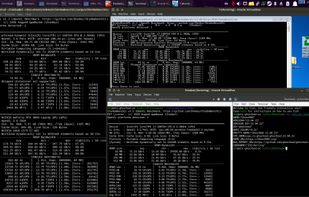
Linux (native), Windows 7 (VM), FreeBSD 13 (GhostBSD 23, VM).

Cost / License

  • Free
  • Open Source (MIT)

Platforms

  • Windows  OpenCL 1.0+, 64-bit (x86_64) Windows 7+, 32-bit (x86) Windows XP+
  • Linux  OpenCL 1.0+, 64-bit (x86_64) and 32-bit (x86) - GLIBC 2.7+
  • BSD  OpenCL 1.0+, 64-bit (x86_64)
0likes
0articles
Save

Features

Properties

Features

Highlights All activities

ChimbaBenchCL News & Activities

Recent activities

ChimbaBenchCL information

AlternativeTo Category

OS & Utilities

GitHub repository

  •  2 Stars
  •  0 Forks
  •  0 Open Issues
  •   Updated  
View on GitHub
ChimbaBenchCL was added to AlternativeTo by Chimbal on and this page was last updated .

No comments or reviews, maybe you want to be first?

Official Links

What is ChimbaBenchCL?

This OpenCL benchmark allows you to test and compare different graphics cards. Thanks to the availability of pre-compiled executable files, the benchmark can be easily transferred and used on different computers with different operating systems. Test results are automatically saved to a file located in the same directory as the program.

Test suite (v1.1): VRAM Bandwidth – memory bandwidth. VRAM Latency – memory random-access latency. FP16-H8 – half-precision (half8). FP32-F8 – single-precision (float8). FP32-FMA – single-precision using FMA (fused multiply-add) instructions. FP32-MAD – single-precision using MAD (multiply-add) instructions. FP64-D4 – double-precision (double4). INT8-U16 – low-precision integer test (uchar16). INT32-I4 – standard-precision integer test (int4). INT64-L2 – high-precision integer test (long2). Image Blur – simulation of graphics processing in real-world tasks (1920x1080, Box Blur).

A typical benchmark run for a single device takes about 30 seconds (v1.1). If the test takes significantly longer, you might be using an Intel UHD 600 GPU on Linux. In such cases, you can disable the problematic device using commands like -disable-gpu-intel (or similar). You can view a list of available commands by running the program with the -help or --help argument.