USBIP icon
USBIP icon

USBIP

 1 like

USBIP Client/Host lets you plug a USB device (like a controller or specialty gadget) into your Android phone or tablet, and make your Windows PC think it's plugged in right there on your desk.
USBIP screenshot 1

Cost / License

Application type

Since

  • New

Platforms

  • Windows
  • Linux
  • Android
  • Android Tablet
  • Android TV
1like
0articles
Save

Features

Features

Highlights All activities

USBIP News & Activities

Recent activities

USBIP information

  • Developed by

    US flagMizukos
  • Licensing

    Open Source (Apache-2.0) and Freemium product.
  • Pricing

    One time purchase (perpetual license) that costs $5 + free version with limited functionality.
  • Alternatives

    2 alternatives listed
  • Badge

    Get an embeddable badge for USBIP
  • Supported Languages

    • English

AlternativeTo Category

OS & Utilities

Popular alternatives

View all
USBIP was added to AlternativeTo by Mizukos on and this page was last updated .

No comments or reviews, maybe you want to be first?

Official Links

What is USBIP?

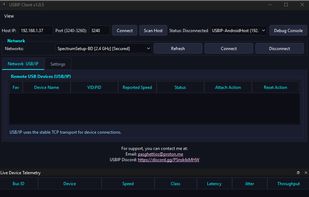
USBIP Client/Host (Android to Windows & Linux) Share USB devices from your Android device straight to your Windows or Linux PC over your network—built with game streamers in mind! What does it do? USBIP Client/Host lets you plug a USB device (like a controller or specialty gadget) into your Android phone or tablet, and make your Windows PC think it's plugged in right there on your desk.

It is especially handy for gamers using Moonlight game streaming who want to bridge the gap between their Android streaming device and their host computer.

🎮 Why would I want this? Moonlight Friendly: Perfect for when you're streaming games to your Android device and want your USB peripherals to work seamlessly across the connection. No Unplugging: Stop constantly crawling behind your desk or swapping cables every time you switch screens. Keep it Simple: No complicated command-line setups or messy driver installs. Just a clean app that gets the job done. 🚀 How do I use it? On your Android device (The Host): Open the app, select the USB device you want to share, and start hosting. On your Windows PC (The Client): Open the app, type in your Android device's local IP address, and click connect. Play: Windows will instantly recognize the USB device as if it was physically plugged into your PC!