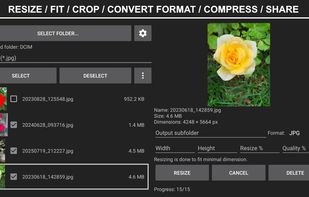
Photo Resizer lets you resize, fit, crop, and convert photos completely offline. Resize a single image or a batch of photos by width, height, or percentage; adjust image quality; fit images onto a background of any size and color; and save the results in your preferred format and subfolder. Everything works without uploading files to the internet, so your photos remain private on your device. The app also supports flipping, rotating, annotating, drawing, measuring, and masking personal information.
FEATURES
• Supports the Android SAF, allowing you to select folders containing images using the standard Android interface. Typical folders include your phone's or SD card's DCIM, DCIM/Camera, or DCIM/Screenshots, depending on where your photos and images are stored.
• Preview and open JPG/JPEG, PNG, WEBP, GIF, Windows bitmap (BMP), HEIC/HEIF, AVIF/AVIFS, JPEG XL (JXL), TIFF, icon (ICO, SVG, SVGZ), PBM, PGM, PPM, PAM, PSD (flattened), HDR, EXR, TGA, PIC, QOI, JPEG 2000 (J2C, JP2, J2K), RAW camera (CR3, CR2, ARW, NEF, RAF, ORF, RW2, DNG, PEF, SRW, RAW, 3FR, CRW, DCR, KDC, MDC, MEF, MOS, MRW, NRW, PPM, RWL, SR2, SRF), texture (KTX2, KTX, BASIS, DDS) images.
• Select multiple photos and perform batch resizing, fitting, file format conversion, or rename in a single operation.
• Choose the desired output format for saved images: JPG, PNG, WEBP, PDF, JPEG XL (JXL), TIFF, ICO, or keep the same format as the original images.
• Resize photos proportionally by specifying either the width or height in pixels or by a specified percentage.
• Fit photos to specified dimensions (width and height in pixels) and fill the surrounding area with a selected background color. Colors can be selected by entering RGB or HSV values or choosing from palette.
• Set JPEG output quality as a percentage (for example, 85 for standard quality or lower values to produce smaller files) or Optimize JPEG file to desired target size in KB or MB.
• Create templates with your preferred size and fit settings for social media, e-mail or other purposes, and reuse them later.
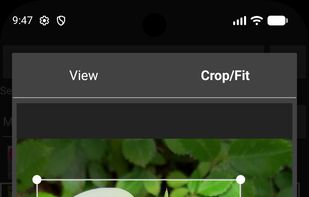
• Crop photos with a preview, then either save the cropped area or fit it to a specified image size with desired background color.
• Flip photos horizontally or vertically, and rotate them by 90°, 180°, or 270° degrees.
• Annotate images by adding text, drawing lines, arrows, shapes, and markers with adjustable thickness, style, and color.
• Measure distances, perimeters, or areas in a photo when a known physical reference is present. Measurements are calibrated using that reference.
• Anonymize (blur or pixelate) faces, license plates, and other personal information before sharing photos.
• ZIP compress, share or delete selected files.
• Display the file list as text only or as text with thumbnail images.
• Choose your preferred PDF output size, margins, image positioning/alignment, and DPI.
Notes: Opening HEIC/HEIF and AVIF/AVIFS images requires a device running Android 12 or later.





 EU
EU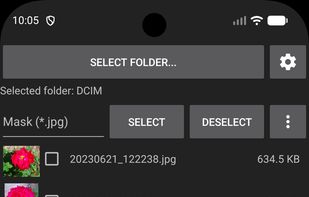




 DiProLtu
No comments or reviews, maybe you want to be first?