PastePlop icon
PastePlop icon

PastePlop

Your clipboard, but a grid. Hit a keyboard shortcut, see everything you've ever copied, file the keepers into categories, paste with a click.
PastePlop screenshot 1

Cost / License

  • Free
  • Proprietary

Platforms

  • Mac
0likes
0comments
0articles

Features

Properties

  1.  Privacy focused
  2.  Lightweight

Features

  1.  OCR
  2.  No registration required
  3.  Works Offline
  4.  No Tracking
  5.  Ad-free
  6.  Dark Mode
  7.  Screenshot OCR
  8.  Support for Hotkeys
  9.  Support for Keyboard Shortcuts
  10.  Global hotkey

PastePlop News & Activities

Highlights All activities

Recent activities

PastePlop information

  • Developed by

    Benjamin Dansby
  • Licensing

    Proprietary and Free product.
  • Alternatives

    50 alternatives listed
  • Supported Languages

    • English

AlternativeTo Category

Office & Productivity
PastePlop was added to AlternativeTo by Paul on and this page was last updated .
No comments or reviews, maybe you want to be first?

What is PastePlop?

Your clipboard, but a grid. Hit a keyboard shortcut, see everything you've ever copied, file the keepers into categories, paste with a click.

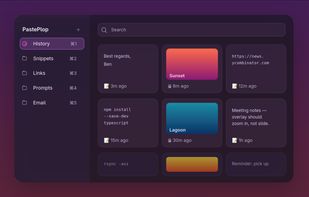
  • One hotkey, everything you've copied: A translucent grid zooms in over whatever you're doing. Text and images, newest first. Click a tile and it pastes back into the app you came from.
  • Categories that stick around: Right-click or drag a tile into a category. Snippets, prompts, signatures, lookup links — your re-usable pastes, just a number-key away.
  • MiniPlop — your floating scratch tray: Pop out a small always-on-top tray. Drop in tiles, files, text clippings, images, or links. Click to paste, drag back out into any app.
  • Text, images, and files. Screenshots, copied PNGs, plain text, and files copied from Finder — all kept, all pasteable. File cards drag back out into any app that takes files.
  • Multi-paste. Select several tiles with shift- or ?-click and paste them all in sequence — perfect for filling out forms or stitching snippets together.
  • Number-key category switching. ?1 is History, ?2–?8 are your saved categories. Drag to reorder.
  • Auto-restore the clipboard. After you paste, your previous clipboard contents come back.
  • Featherweight and native. Pure SwiftUI + AppKit. Tiny binary, instant launch, no background services beyond the clipboard watcher.
  • Find it in two strokes. ?F focuses the search. Type a few characters, hit return. Whether you copied it ten seconds ago or yesterday afternoon, it's right there.
  • Search inside images. Screenshots get OCR'd locally via Vision so the search query matches what's visible in your image history.