

newm
This Wayland compositor prioritizes laptops and touchpads, offering unique 2D wall window management with customizable configurations and gesture controls. With multi-application management, touch-based navigation, and zoom-adjustment features, expect an intuitive and efficient experience.
Cost / License
- Free
- Open Source
Application types
Alerts
- Discontinued
Platforms
- Linux
- Wayland
The project is no longer maintained since 2023
Features
Properties
- Lightweight
Features
- No registration required
- Ad-free
- Wayland Support
newm News & Activities
Recent activities
- Danilo_Venom updated newm
- Danilo_Venom added newm as alternative to miracle-wm, Pinnacle and Gnome Mutter
- Danilo_Venom removed all alternatives one-way from newm
newm information
Developed by
Jonas BucherLicensing
Open Source (MIT) and Free product.Written in
Alternatives
17 alternatives listedSupported Languages
- English

AlternativeTo Category
OS & UtilitiesGitHub repository
- 961 Stars
- 31 Forks
- 39 Open Issues
- Updated



What is newm?
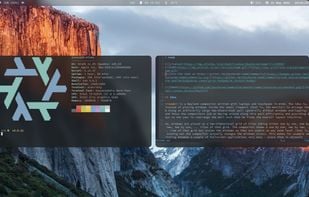
newm is a Wayland compositor written with laptops and touchpads in mind. The idea is, instead of placing windows inside the small viewport (that is, the monitor) to arrange them along an arbitrarily large two-dimensional wall (generally without windows overlapping) and focus the compositors job on moving around along this wall efficiently and providing ways to the user to rearrange the wall such that they find the overall layout intuitive.
So, windows are placed on a two-dimensional grid of tiles taking either one by one, one by two, two by one, ... tiles of that grid. The compositor shows a one by one, two by two, ... view of that grid but scales the windows so they are usable on any zoom level (that is, zooming out the compositor actually changes the windows sizes). This makes for example switching between a couple of fullscreen applications very easy - place them in adjacent one by one tiles and have the compositor show a one by one view. And if you need to see them in parallel, zoom out. Then back in, and so on...
The basic commands therefore are navigation (left, right, top, bottom) and zoom-in and -out. These commands can be handled very intuitively on the touchpad (one- and two-finger gestures are reserved for interacting with the apps):
Use three fingers to move around the wall Use four fingers to zoom out (move them upward) or in (downward) To be able to arrange the windows in a useful manner, use
Logo (default , unless configured otherwise) + one finger on the touchpad to move windows Logo (default , unless configured otherwise) + two fingers on the touchpad to change the extent of a window To get a quick overview of all windows, just hit the Logo (default , unless configured otherwise) key. Additionally with a quick 5-finger swipe a launcher panel can be opened.
These behaviours can (partly) be configured (see below for setup). By default (check default_config.py), the following key bindings (among others) are in place
Logo-hjkl: Move around Logo-un: Scale Logo-HJKL: Move windows around Logo-Ctrl-hjkl: Resize windows Logo-f: Toggle a fullscreen view of the focused window (possibly resizing it)