IR Blaster Remote icon

IR Blaster Remote

Create custom infrared (IR) remotes using hex codes, raw signals, or Flipper Zero, LIRC, and IRPLUS files.
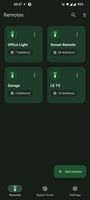
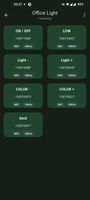
IR Blaster Remote screenshot 1

Cost / License

Platforms

  • Android
  • F-Droid
1like
0comments
0articles

Features

IR Blaster Remote News & Activities

Highlights All activities

Recent activities

IR Blaster Remote information

  • Developed by

    iodn
  • Licensing

    Open Source (GPL-3.0) and Free product.
  • Alternatives

    5 alternatives listed
  • Supported Languages

    • English
    • German
    • French
    • Polish
    • Ukrainian
    • Dutch
    • Arabic
    • Spanish
    • Korean
    • Italian
    • Japanese
    • Portuguese
    • Thai
    • Russian
    • Chinese
    • Vietnamese
    • Malay
    • Turkish

GitHub repository

  •  288 Stars
  •  32 Forks
  •  6 Open Issues
  •   Updated  
View on GitHub
IR Blaster Remote was added to AlternativeTo by User1234567 on and this page was last updated .
No comments or reviews, maybe you want to be first?

What is IR Blaster Remote?

Universal IR Remote for Android IR Blaster is an Android application for creating, managing, and transmitting infrared (IR) signals through multiple output methods, including a device’s built-in IR emitter, supported USB IR dongles, and audio-to-IR LED adapters.

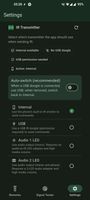
Custom Remote Commands: Create and manage remotes using protocol encoders or raw IR patterns. Signal Tester (IR Finder / Infrared Bruteforcer): Systematically try protocol/code variations to discover working signals. Transmitter Selection & Auto Switch: Choose Internal, USB, Audio (1 LED), or Audio (2 LEDs) under Settings > IR Transmitter. Optional Auto Switch uses USB when a supported dongle is attached, otherwise Internal (disabled if Audio is selected). Import/Export & Maintenance (Settings > Remotes): Import JSON backups, Flipper Zero .ir, IRPLUS .irplus / XML (beta), and LIRC .conf / .cfg / .lirc (beta) files Browse compatible files from GitHub repositories in GitHub Store and import them directly into the app Export remotes to Downloads Restore the built-in demo remote Delete all remotes Learning Mode (Settings > Learning Mode): Use a supported USB learning dongle to capture a button from a physical remote Preview the learned signal, replay it, and save it into a new or existing remote GitHub Store for browsing GitHub repositories and importing compatible IR files directly.