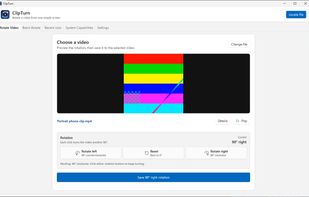
Windows lets you right-click a photo and rotate it, but it offers nothing for video. ClipTurn adds Rotate left and Rotate right to the File Explorer context menu, so a clip that a phone saved sideways can be fixed in two clicks without opening an editor or choosing an export preset.
Most rotation tools take one of two approaches. Some flip an orientation flag in the container, which looks correct locally but reverts on players and websites that ignore the flag. Others ask for a codec, a bitrate and a quality level, leaving the user to guess which combination damages the file least. ClipTurn physically turns the picture inside the file and selects the processing path itself, aiming for a visually lossless result in the source codec when a compatible Windows encoder exists.
Audio, subtitles, metadata and HDR information are carried across wherever the container allows. Every candidate file is verified independently against the source before it is allowed to replace the original, and a receipt records exactly what was checked. When a faithful rotation is not possible, ClipTurn refuses and explains why instead of silently producing a worse file. Apple ProRes is a typical case, because the codec cannot be written back on Windows and rotating it would mean re-encoding a mastering-quality file as lossy H.264.
A batch tab rotates a list of files in one pass, and a system capabilities scan reports which decoders and encoders are actually present on the PC. Supported containers are MP4, M4V, MOV, MKV, WebM, WMV and uncompressed AVI.
The boundaries are stated plainly. Compressed video is re-encoded, so a saved rotation is a new generation and repeated rotations accumulate loss. Only supported uncompressed packed-pixel AVI can be rotated sample-exactly. Rotations started from File Explorer replace the file and cannot be undone, while rotations started inside the app can optionally keep a backup. ClipTurn requires Windows 11, runs entirely on the local machine, and needs no account.








 Danilo Venom added ClipTurn as alternative to Free Video Flip and Rotate, Mixmoov, VideoWave, Video Rotator and Flipper and 4 more


 FixQuotes


No comments or reviews, maybe you want to be first?