


NMEATime2
NMEATime runs on the PC as a service disciplining the PC clock to the GPS reference. NMEATime consists of three software programs.
Cost / License
- Pay once
- Proprietary
Platforms
- Windows

NMEATime2 News & Activities
Recent activities
NMEATime2 information
Developed by
 VisualGPS
 Licensing
Proprietary and Commercial product.Pricing
One time purchase (perpetual license) that costs up to $20.Alternatives
1 alternatives listedSupported Languages
- English

What is NMEATime2?
NMEATime runs on the PC as a service disciplining the PC clock to the GPS reference. NMEATime consists of three software programs. The back-end service, the front-end user interface, and the tray-bar status.
The back-end service is called NMEATimeService. When the PC is booted, the NMEATimeService is started and will run indefinitely until the PC is turned off. This service is responsible for disciplining the PC clock to the GPS reference and is the heart of the system.
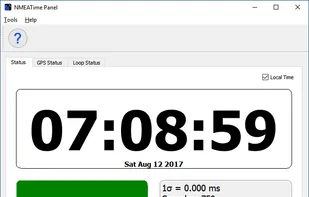
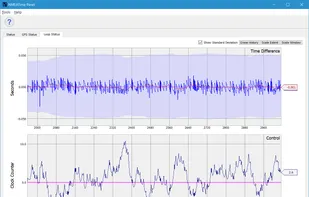
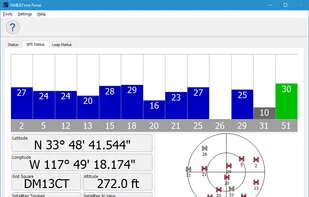
The front-end user interface, NMEATimePanel, will run when either you start it from the start menu or the NMEATime tray-bar status icon. The NMEATimePanel will allow you to control and view the status of the NMEATimeService. You can tell that it is running by its status on the tray-bar. See tray-bar notes for more information.
Start/Stop NMEATime2 Service
The NMEATime2 service can be started, stopped, and restarted. To do this from Windows 10, start the task manager. First, click on the "Start" button, and type Task Manager, and press enter. You should see the Task Manager application. Click on the "Services" tab and look for the "NMEATimeService.exe". Right-click on the service and choose the desired function.